Try it
What to type.
Make a short beat for this clip with drums, bass and chords, then give me drum pads so I can tap a clap over it.
Try it now in Kazi, free · Add it to ChatGPT, Claude or another app
When your AI assistant makes music for a video with cuttingfloor, it builds the music in layers: drums, bass, chords, a lead. Each layer is one instrument playing its own notes at its own level. You change a layer by saying so, and the other layers stay as they were. You can also add a layer yourself, by tapping drum pads or humming over the music while it loops.
A layer holds one instrument and the notes it plays. A drum layer plays a drum kit, a bass layer plays a bass sound, a chord layer plays held chords. Each has its own volume and can be muted or played on its own. The finished music is all the layers playing together, turned into one audio file that goes under your video.
The picture below is a 10-second piece made this way: four bars at 96 beats a minute, with four layers. Time runs left to right and pitch runs bottom to top. Blue is the drums, orange the bass, green the chords, and pink the three notes tapped in on the drum pads: two claps and an open hi-hat.
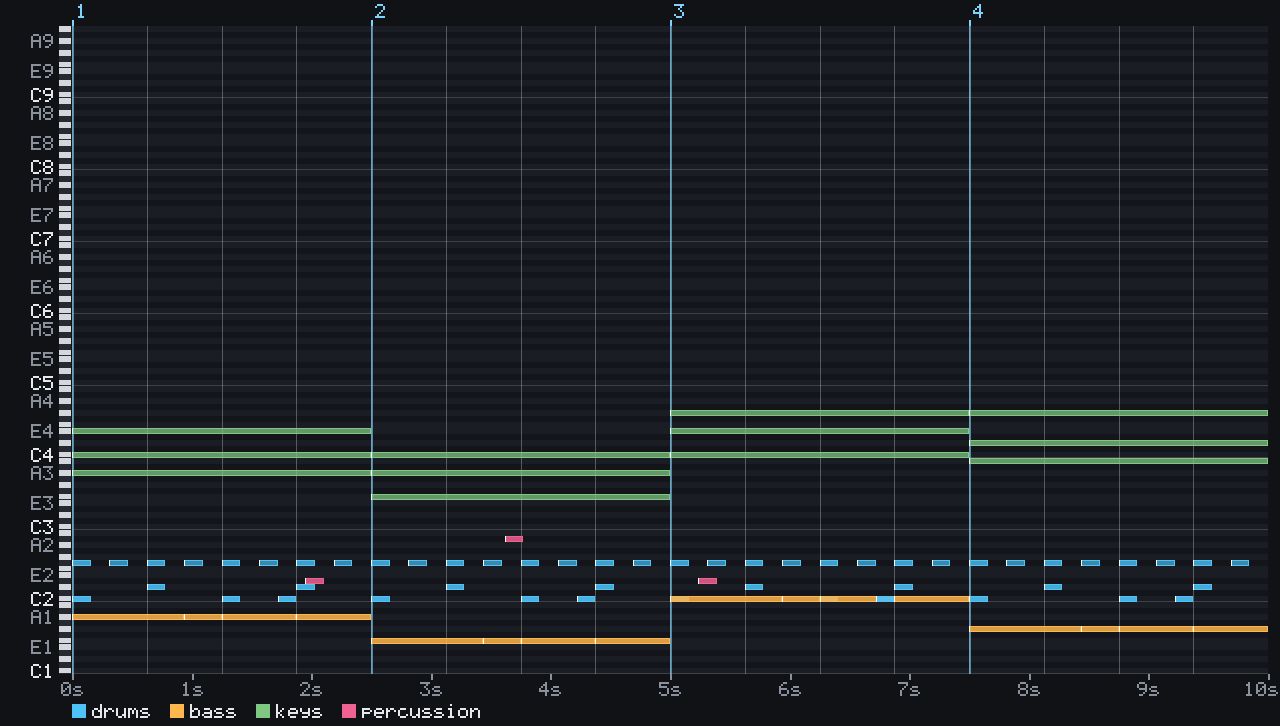
You describe the music, and your assistant builds and changes the layers. In order, it goes like this:
Every change makes a new version of the music, and the earlier versions stay available for 7 days after you last use them, so you can go back. The music stays editable after it is in your video: “make it darker” changes the same notes and instruments, it does not start over.
Ask your assistant for pads to play, for example “let me tap a clap over it”. It opens a page of drum pads, each named for its sound. In a chat app that shows cuttingfloor’s views, the pads appear in the chat; anywhere else your assistant gives you a link that opens them in a browser, on a phone or a computer.
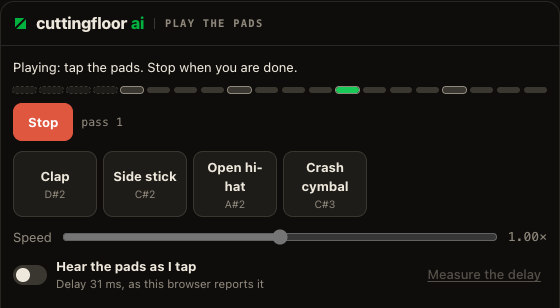
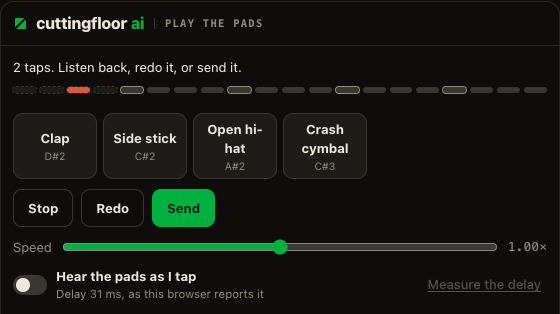
When you tap Send, the take goes into the music as a new layer of notes. Each tap becomes a note at the moment you played it, not moved onto the nearest beat, so a clap played slightly late stays slightly late. In the take behind the picture above, the first clap landed at beat 3.12 of the loop. If you want it exactly on the beat, ask your assistant to move it.
Taps you play on a second pass of the loop are kept but silent, until you ask for the layer to be made longer. Most phones don’t report how hard you hit the screen, so every tap is stored at the same strength, which your assistant chooses and can change afterwards. The page also reads your device’s sound delay (31 milliseconds on the laptop we used) and takes it off each tap, so the notes line up with what you heard.
The same page can record from your microphone instead of the pads. Hum a tune, tap a rhythm on the table or say a line over the loop, and the recording comes back as an audio layer placed on the beat you heard. Use headphones if you can: recorded over a speaker, the take also picks up the music, and your assistant is told where.
Make a short beat for this clip with drums, bass and chords, then give me drum pads so I can tap a clap over it.
Try it now in Kazi, free · Add it to ChatGPT, Claude or another app